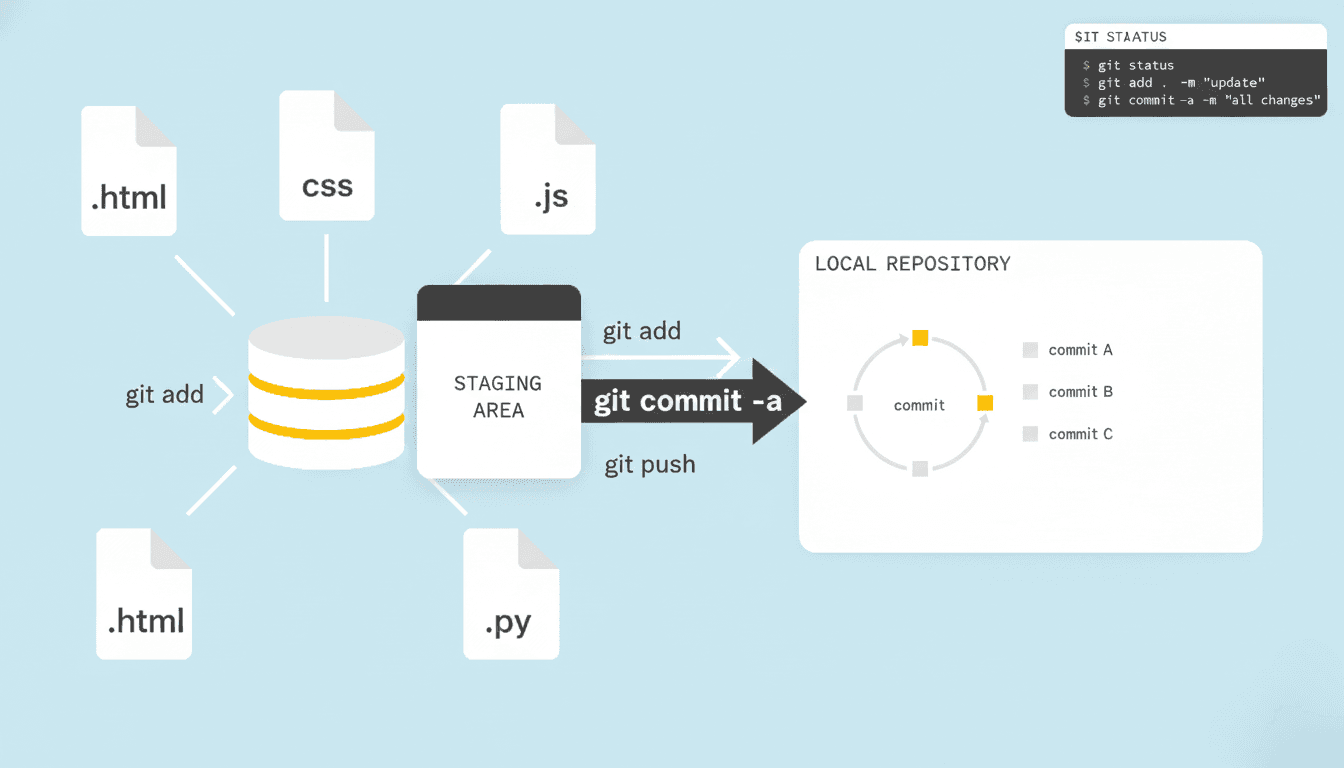
Understanding git commit -a in Git (Beginner-Friendly Guide)
Understanding git commit -a in Git (Beginner-Friendly Guide)
If you use Git regularly, you’ve probably seen or heard about the command:
git commit -a
At first glance, it may look confusing, but once you understand it, this command can save time and speed up your workflow. In this article, we’ll break it down in simple terms, with real-world examples and best practices.
What Is git commit -a?
The -a flag stands for “all”.
When you run:
git commit -a -m "Your message"
Git will:
- Automatically stage all modified files
- Automatically stage deleted files
- Create a commit in one step
👉 Think of it as a shortcut for:
git add <all tracked files>
git commit
Important Rule (Very Important 🚨)
git commit -aonly works for files that are already tracked by Git.
It DOES include:
- Modified files
- Deleted files
It does NOT include:
- New (untracked) files
- Ignored files
Simple Example (Beginner Friendly)
Step 1: Modify a file
README.md (edited)
Step 2: Check status
git status
Output:
modified: README.md
Step 3: Commit using -a
git commit -a -m "Update README content"
✅ Done! No need to run git add.
Example with a New File (Common Mistake)
touch new_feature.dart
git commit -a -m "Add new feature"
❌ This will NOT work
Why? Because new_feature.dart is untracked.
Correct way:
git add new_feature.dart
git commit -m "Add new feature"
Real-World Use Case 💼
Scenario: Quick Bug Fix
You fix:
- A UI padding issue
- A typo in text
- Remove an unused file
All files are already tracked.
Instead of:
git add .
git commit -m "Fix UI issues"
You can simply do:
git commit -a -m "Fix UI issues"
✔ Faster ✔ Cleaner ✔ Efficient
git commit -a vs Normal Commit
Normal Workflow
git add .
git commit -m "Fix bug"
With -a
git commit -a -m "Fix bug"
| Feature | git commit -a |
|---|---|
| Stages modified files | ✅ |
| Stages deleted files | ✅ |
| Stages new files | ❌ |
| Faster workflow | ✅ |
| Selective control | ❌ |
When Should You Use git commit -a?
Use it when:
- You made small changes
- All changes should go in one commit
- You are confident about your edits
- Files are already tracked
When NOT to Use It
Avoid git commit -a when:
- You want to commit specific files only
- You are working on large features
- You have experimental or partial changes
- You need fine control over staging
Best Practice Tip 💡
Always run:
git status
Before:
git commit -a
This prevents accidental commits.
Pro Tip (No -m)
You can write a detailed commit message:
git commit -a
This opens the editor so you can follow proper commit message standards.